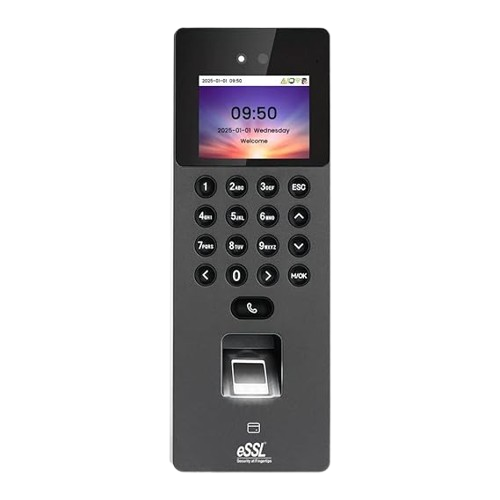
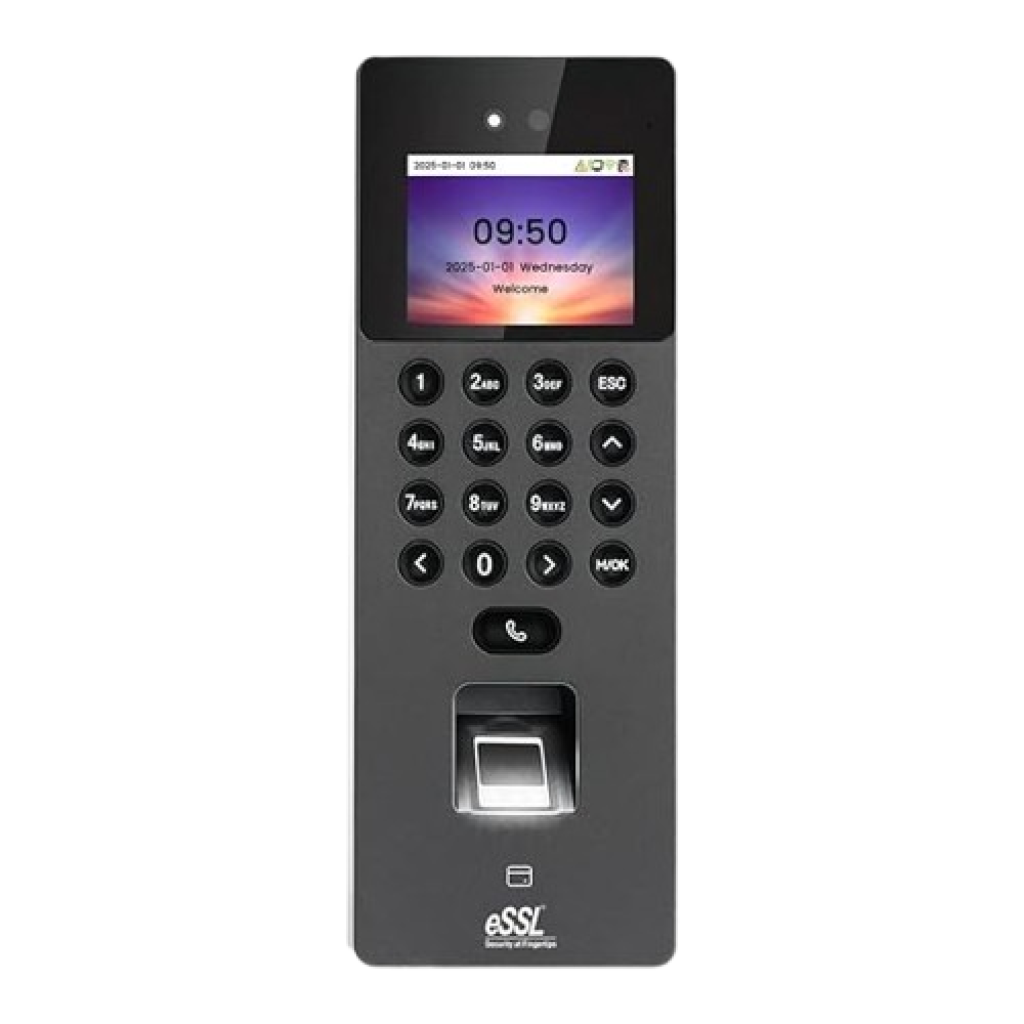
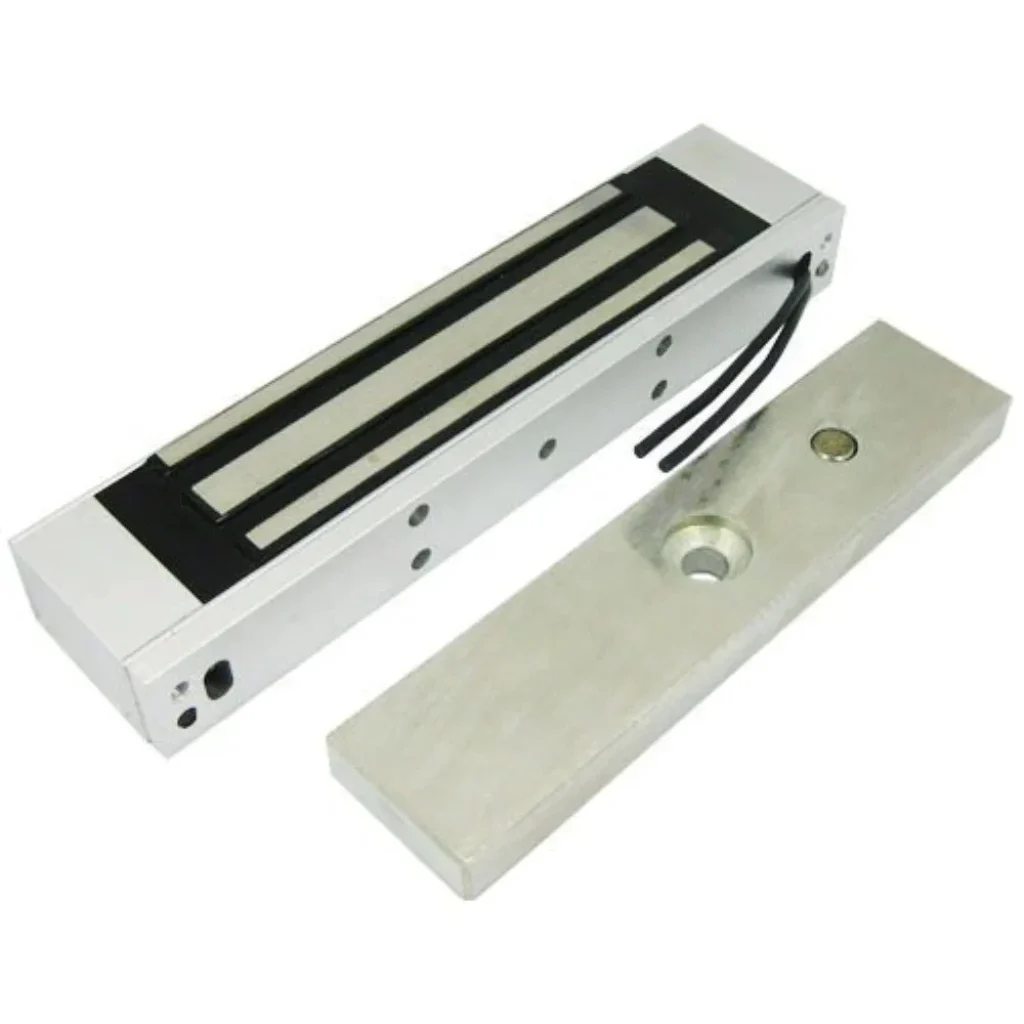
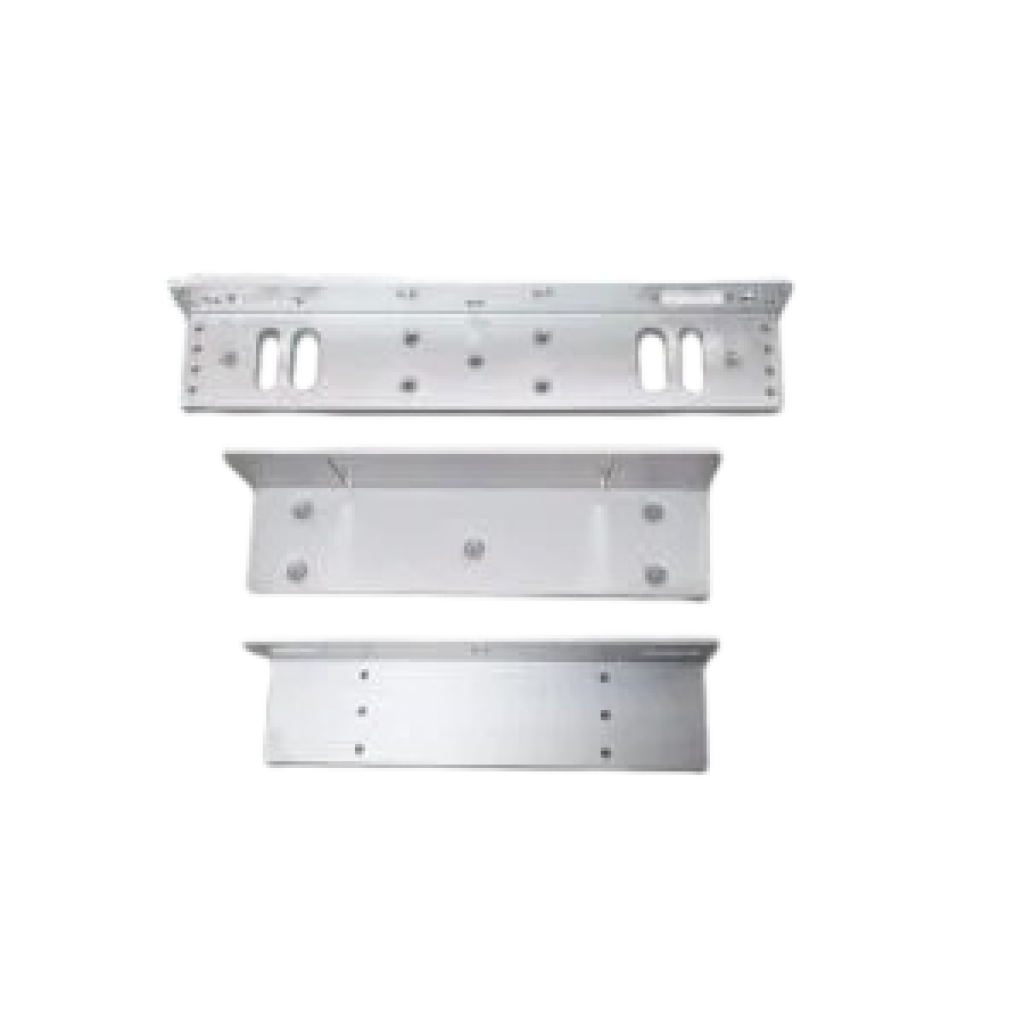
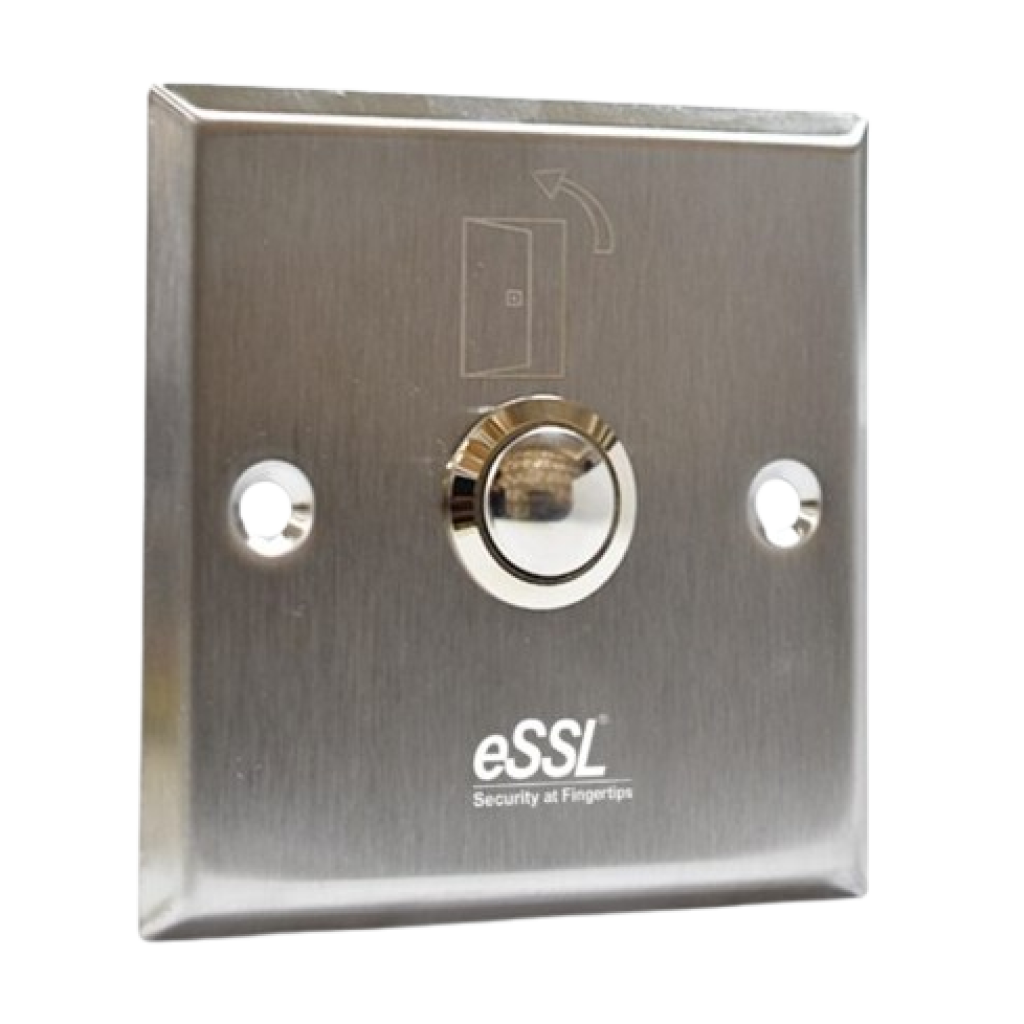
Face - Aiface-OrcusPrice - Rs. 11000Category - FaceFeatures - Display : 2.4"@ TFT Color LCD Screen (320*240),Camera : WDR Binocular Camera @ 1MP ,Operation System : Linux ,Hardware : CPU: Dual Core@1GHz , RAM: 512MB , ROM: 8GB Specifications Technical SpecificationDisplay : 2.4"@ TFT Color LCD Screen (320*240)Camera : WDR Binocular Camera @ 1MPOperation System : LinuxHardware : CPU: Dual Core@1GHz , RAM: 512MB , ROM: 8GBMultiple Authentication method : Fingerprint / Face / Card / PasswordFingerprint Template Capacity : 3000Face Template Capacity : 1500Card Capacity : 3000User Capacity : 3000Transaction Capacity : 1,50,000Biometric Authentication Speed : Fingerprint: < 0.5 sec; Facial Authentication: < 0.35 secFacial Authentication Distance : 30cm to 200cmFalse Acceptance Rate (FAR) % : Visible Light Facial Authentication : FAR ≤ 0.01% , Fingerprint : FAR ≤ 0.0001%False Rejection Rate (FRR) % : Visible Light Facial Authentication : FRR ≤ 0.02% , Fingerprint : FRR ≤ 0.01%Available RFID Module : Proximity Card@125 kHz (Standard) , Mifare Card@13.56 MHz (Optional)Communication : TCP/IP, Wi-Fi, USBAccess Control Interface : Electro Magnetic Lock/ Electric Lock, Door Sensor, Exit ButtonPower Supply : DC 12V 1.5AOperating Temperature : -5°C to 45°COperating Humidity : 20% to 80% RH (Non-condensing)Dimensions : 205.20 mm*74.19 mm*33.30 mm (L*W*H)Supported Software : eTimetracklite Software, ebioServer 4-in-1 Feature ComboAll essential tools combined for a seamless experiencePrice: Rs. 13,400(Rs.1,000 courier charges will be extra) AiFace OrcusRs.11000 EM LockRs.1600 L/U BracketRs.450 Exit SwitchRs.350 How to Setup ESSL BiometricFollow these Steps for Configuration Step 1 : Change Server AddressLocation: *Main Menu >> Comm. >> Cloud Server Settings*Enable Domain Address: True (ON)Server Address: essl.ndgms.com:86Enable Proxy Server: False (OFF)HTTPS: False *(OFF)Note: Please Share Photo of the screen when settings done.* Step 2 : Check DHCP SettingLocation: Main Menu >> Comm. >> Ethernet/Wireless NetworkDHCP: *True (ON)Note: Please Share Photo of the screen when settings done.* Step 3 : Share Device/Cloud IDLocation: Main Menu >> System Info/About >> Device Info >> Device IDNote: Please Share Photo of the screen.* Setup TutorialWatch Video Tutorial Here See Video