K30

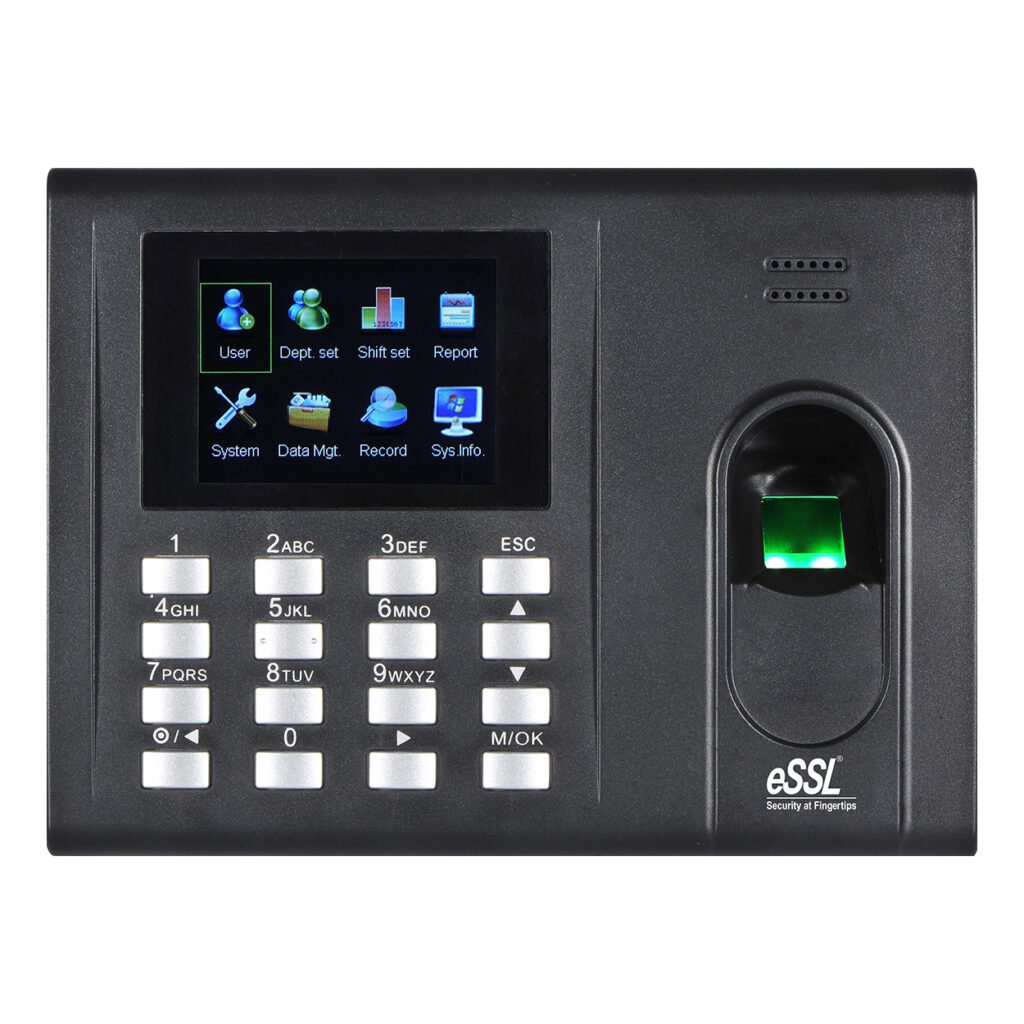
ESSL K30 Pro

Price - Rs. 7700

Category - Finger Print/Card Features - Fingerprint Templates = 2000 , Log Capacity =100000, Card Capacity= 2000, Fingerprint Sensor= 500 DPI Optical Sensor .

Note : "We strongly recommend contacting your vendor to request a firmware update that includes the auto-block feature."

Specifications

Technical Specification

  • User Capacity: 2000
  • Fingerprints Capacity: 2000
  • Card Capacity: 2000
  • Transaction Storage: 100000
  • Push Data: Yes
  • Card Reader: Yes
  • Fingerprint sensor: 500 DPI Optical Sensor
  • FAR : <=0.0001% / FRR : <=1%
  • Identication Speed: <= 1sec
  • Algorithm Ver: 10
  • Display: 2.8” TFT Sceen
  • Keypad: 4 x 4 Keypad
  • LED Indicator: Green/Red
  • Schedule Bell/Speaker: Mini Speaker
  • Communication: TCP/IP, USB-host
  • Standard Features: Inbuilt Battery Backup,
  • Self Service Query
  • Status Switch, DST, T9 Input

Power Supply

  • Power Supply: 12V DC, 1.5 Amps
  • Operating Temprature: 0°C to 45°C
  • Operating Humidity: 20% - 80%
  • Dimension (in mm): 185 x 140 x 30
  • Access Control: Yes
  • Relay: 12V
  • Exit Readers: NO
  • Exit: NO TOUCH and PUSH BUTTON
  • Inbuilt Battery: yes

Compatible Software & SDK

  • eTimeTracklite desktop & web

Major Applications

  • Time & Attendance , Canteen management, School attendance, Production Management, Gym & clubs

4-in-1 Feature Combo

All essential tools combined for a seamless experience
Price: Rs. 10,100 (Rs.1,000 courier charges will be extra)
K30

ESSL K30 Pro

Rs.7700
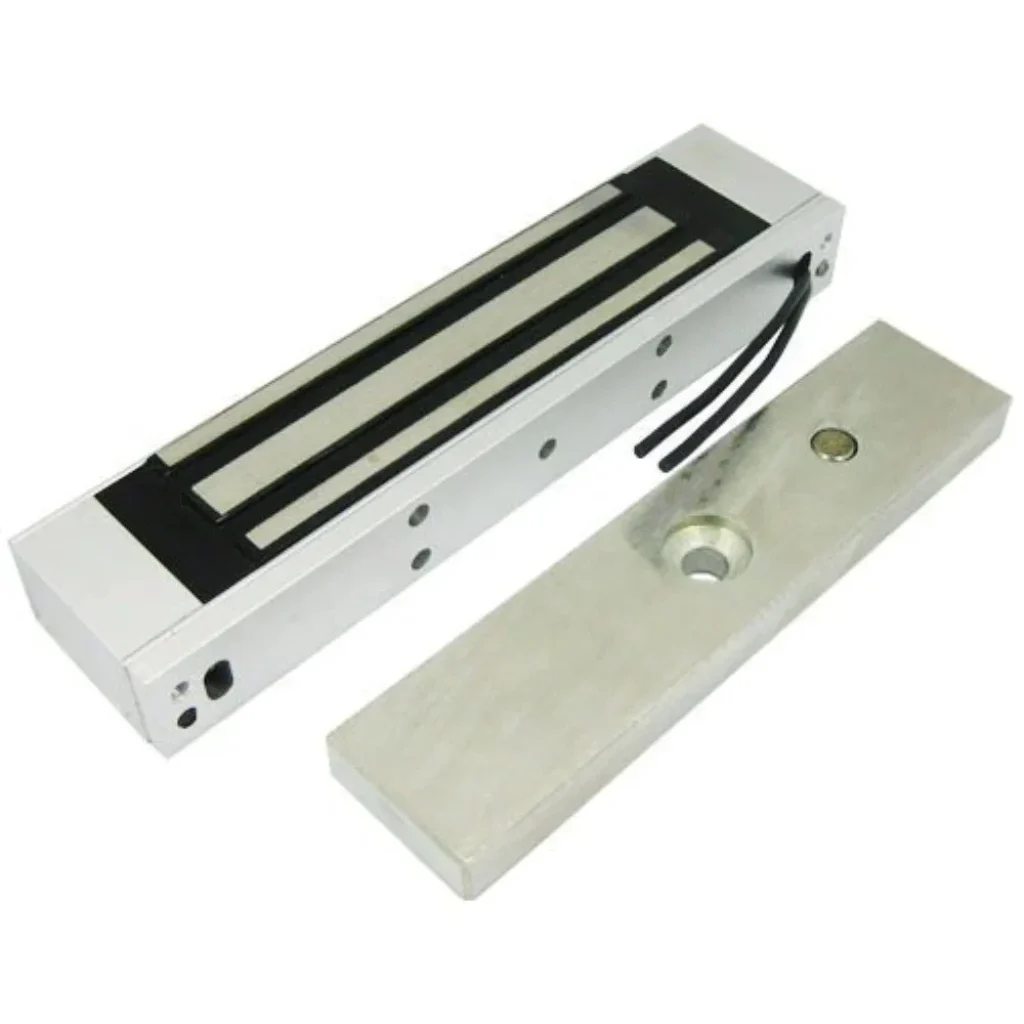
essl-magnet-em-lock-for-door-lock-access-method-biometric-1000x1000

EM Lock

Rs.1600
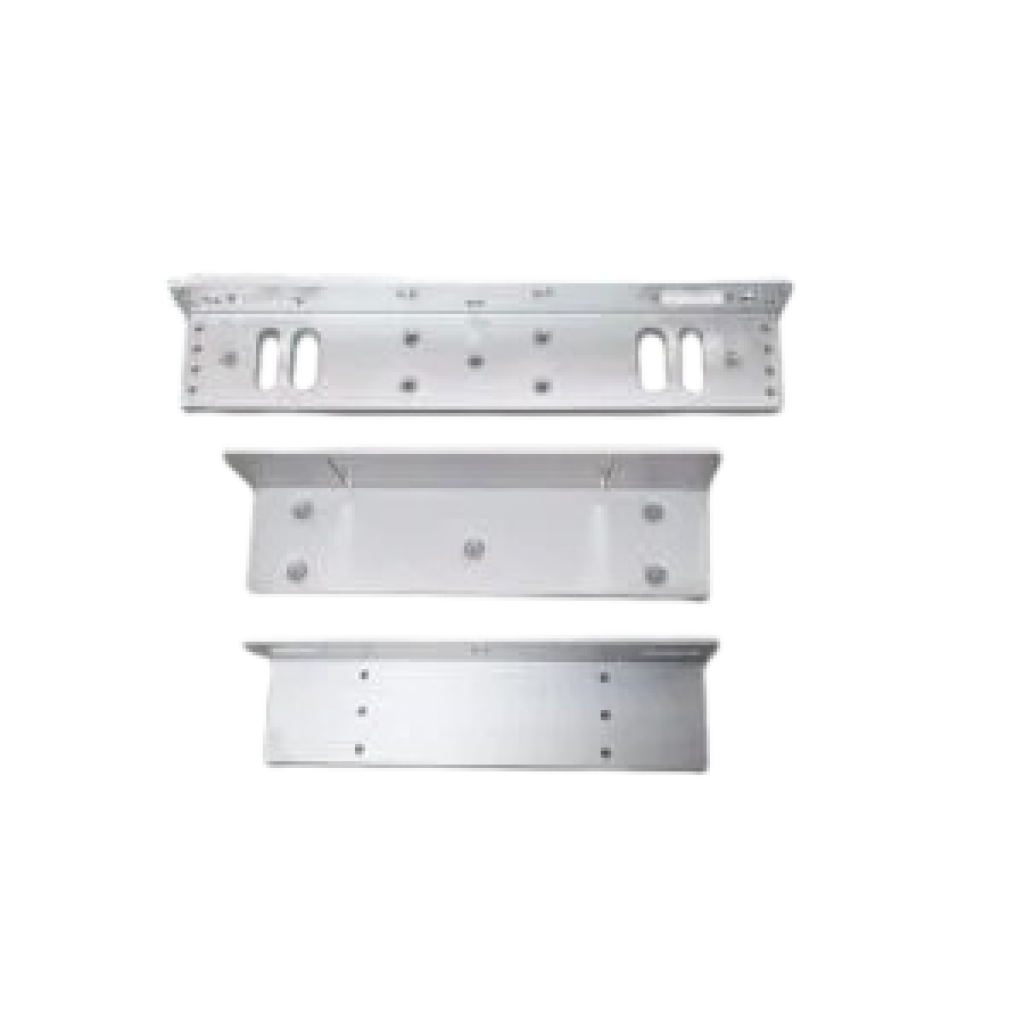
EML600-7-LZ-1-300x300-removebg-preview

L/U Bracket

Rs.450
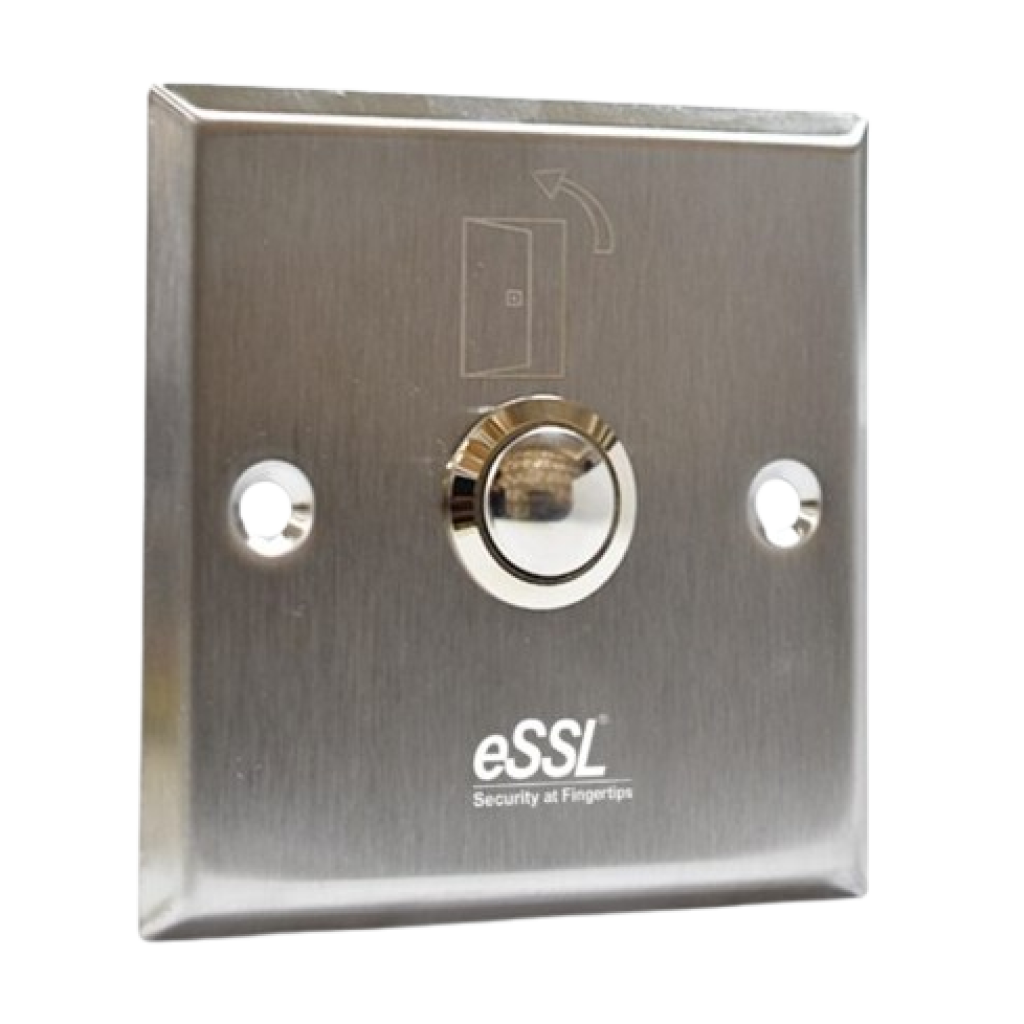
essl-Push-9-SQ-600x576-removebg-preview

Exit Switch

Rs.350

How to Setup ESSL Biometric

Follow these Steps for Configuration

Step 1 : Change Server Address

Location: *Main Menu >> Comm. >> Cloud Server Settings*
Enable Domain Address: True (ON)
Server Address: essl.ndgms.com:86
Enable Proxy Server: False (OFF)
HTTPS: False *(OFF)
Note: Please Share Photo of the screen when settings done.*

Step 2 : Check DHCP Setting

Location: Main Menu >> Comm. >> Ethernet/Wireless Network
DHCP: *True (ON)
Note: Please Share Photo of the screen when settings done.*

Step 3 : Share Device/Cloud ID

Location: Main Menu >> System Info/About >> Device Info >> Device ID
Note: Please Share Photo of the screen.*

Setup Tutorial

Watch Video Tutorial Here