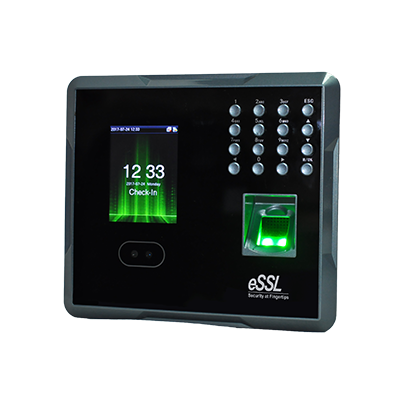
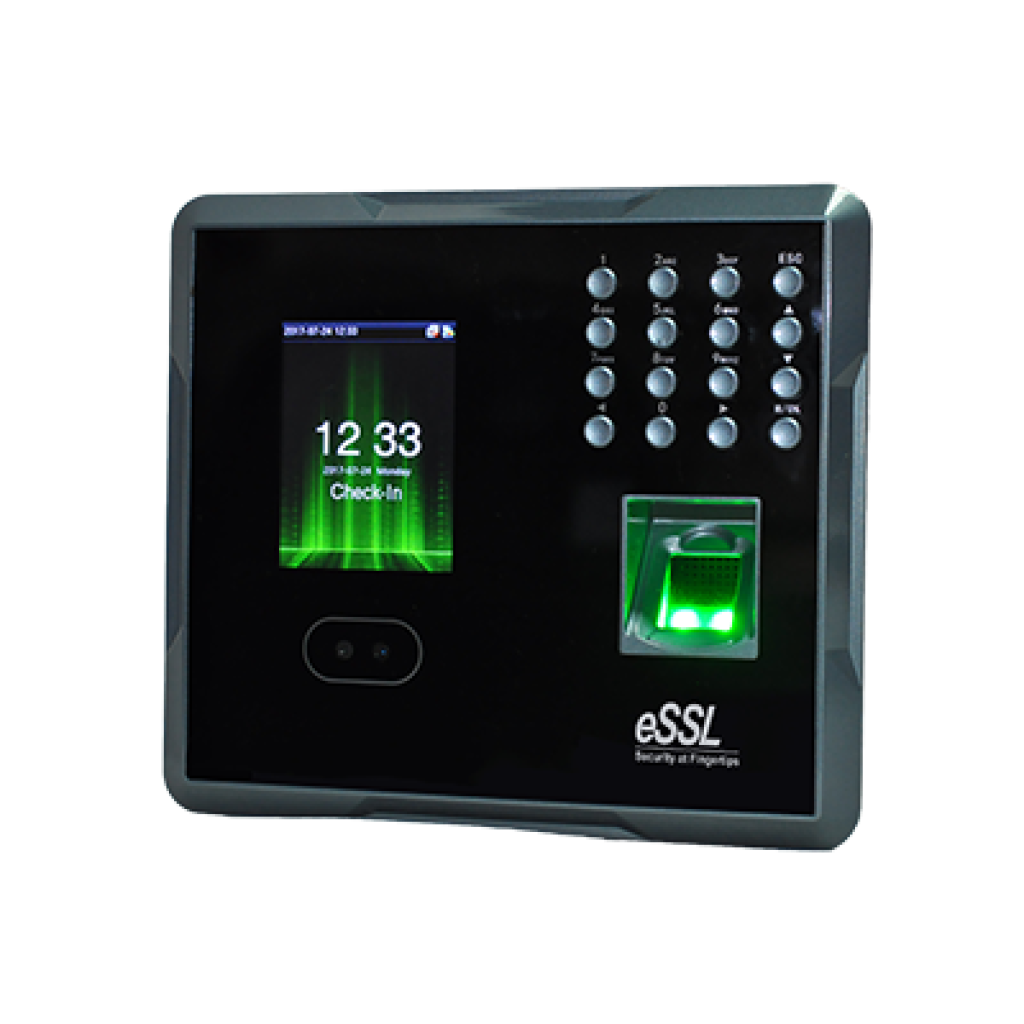
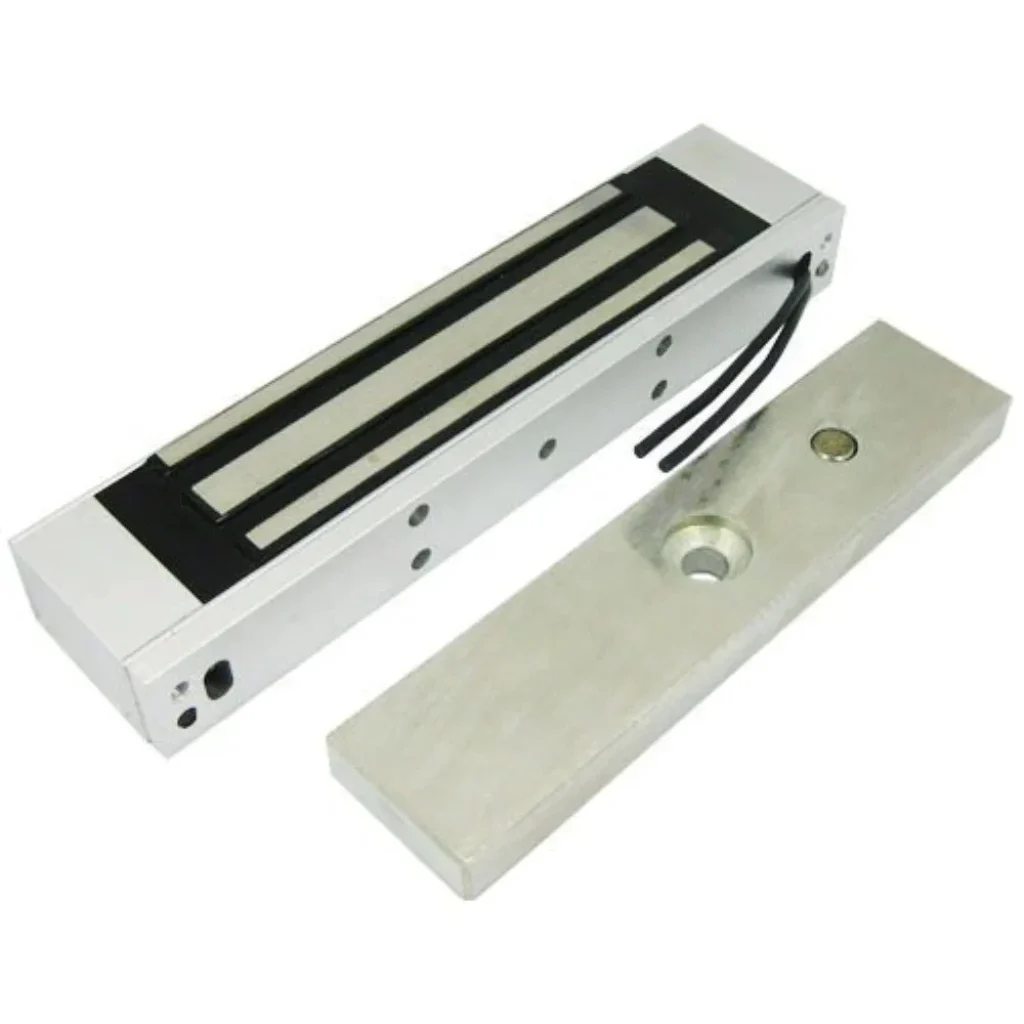
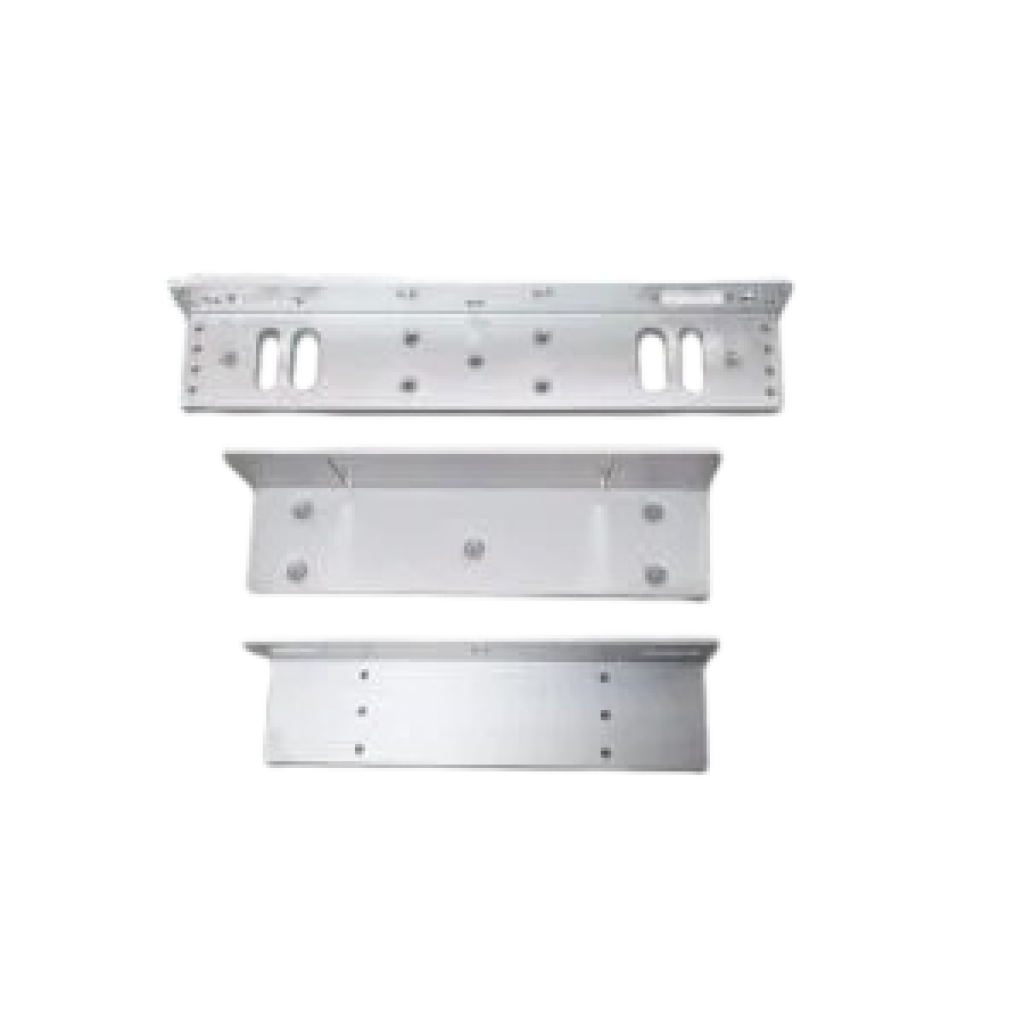
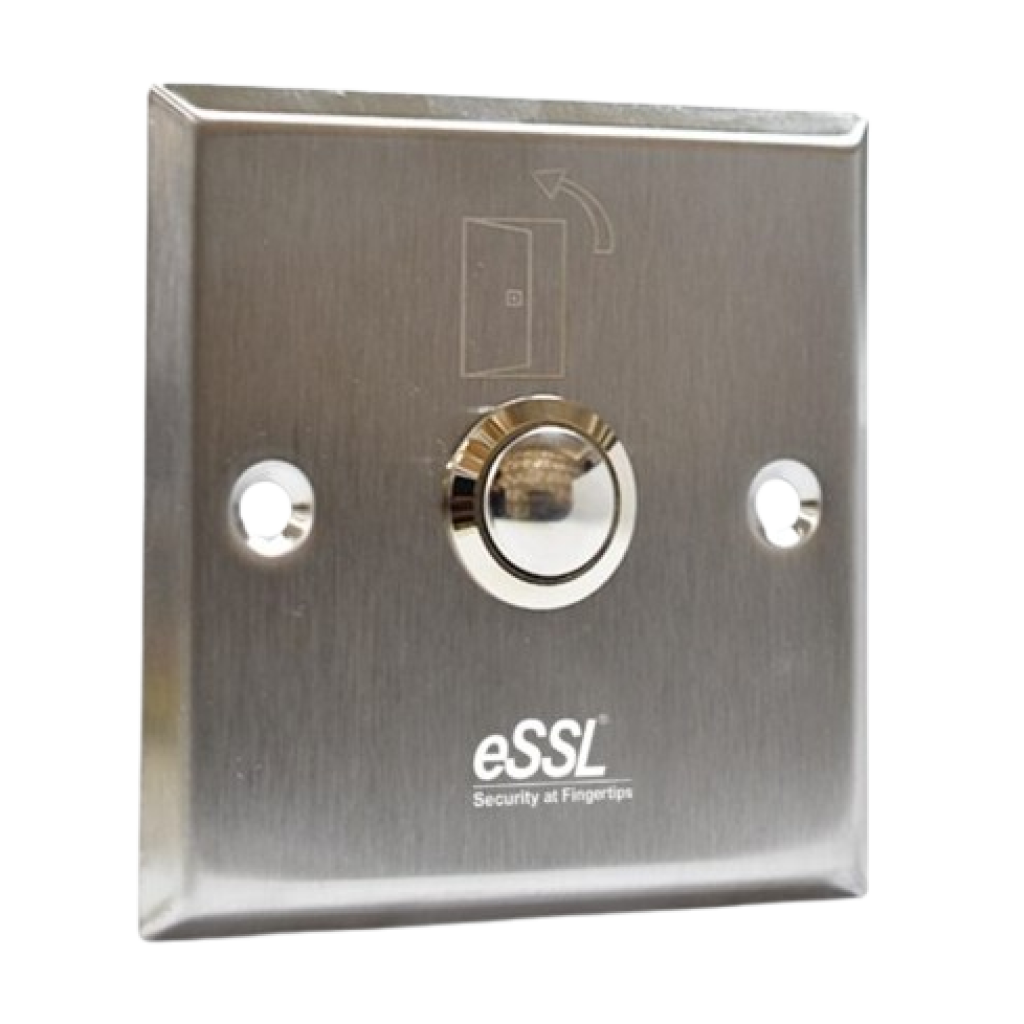
Face - MB160Price - Category - Face Features - Face Capacity: 1,500 Fingerprint Capacity: 2,000 ID card Capacity: 2,000 Display: 2.8-inch TFT Screen Communication: TCP/IP, USB-Host Transaction Capacity: 1,00,000 Identification speed: <=1 sec Note : "We strongly recommend contacting your vendor to request a firmware update that includes the auto-block feature." Specifications Storage CapacityFace Capacity : 1500Fingerprint Capacity : 2000ID card Capacity : 2000Transaction Capacity : 100000 VisualDisplay : 2.8-inch TFT Screen CommunicationCommunication : TCP/IP, USB-HostPush Data : YesGPRS : Optional Standard FunctionSMS, DLST, Scheduled-bell, Self-Service Query, Automatic Status Switch, T9 Input, Photo ID, Camera, Multi-verifcationInterface for Access Control 3rd Party Electric Lock, Door Sensor, Exit Button, Alarm Optional FunctionID , Work Code, RS232 Printer Power & EnvironmentBattery : (Optional)Power Supply : DC 12V --- 1.5AVerification Speed : ≤0.5 SecOperating Temperature : 0OC - 45oCDimension (in mm) : (L)167.5 x (W)148.8 x (H)32.2 FeaturesHigh verification speedProfessional firmware and platform make it more flexibleIntuitive and stunning UI designSophisticated and lightweight design, fits in any environment 4-in-1 Feature ComboAll essential tools combined for a seamless experiencePrice: Rs. - (Rs.1,000 courier charges will be extra) Face MB 160_ EM LockRs.1600 L/U BracketRs.450 Exit SwitchRs.350 How to Setup ESSL BiometricFollow these Steps for Configuration Step 1 : Change Server AddressLocation: *Main Menu >> Comm. >> Cloud Server Settings*Enable Domain Address: True (ON)Server Address: essl.ndgms.com:86Enable Proxy Server: False (OFF)HTTPS: False *(OFF)Note: Please Share Photo of the screen when settings done.* Step 2 : Check DHCP SettingLocation: Main Menu >> Comm. >> Ethernet/Wireless NetworkDHCP: *True (ON)Note: Please Share Photo of the screen when settings done.* Step 3 : Share Device/Cloud IDLocation: Main Menu >> System Info/About >> Device Info >> Device IDNote: Please Share Photo of the screen.* Setup TutorialWatch Video Tutorial Here See Video